Launch prices · book , Complete Bundle · for the first 500 people · prices go up in 0d 00h 00m 00s · See pricesComplete Edition · Now with new chapters on Claude and Microsoft 365 Copilot

Stop making slides.Start designing.

The complete, practical course in presentation design — from a blank slide to a finished deck. No design degree required.
Turn ideas into slides people remember. Layout, type, colour and story.
302M+ views on his tutorials. YouTube · Instagram · Facebook
Dr. Abdullah Shaikh — The AMS
LayoutsBuild on a grid.
TypographyFonts that speak.
ColourPalettes with purpose.
Design with AIFaster, with your judgment.
Tutorials viewed 302M+ times
across YouTube, Instagram & Facebook.
Less clutter.
          More clarity.
Trusted by
CanvaMicrosoft 365CopilotWondershareGammaPowerPointFilmoraMetaTeams
The book

Master the Art of PowerPoint. Complete Edition.

Fifteen chapters, three levels, one skill — the methods, design principles and hard-won lessons behind tutorials viewed more than 302 million times.

  • Build slide layouts on grids, guides and proven structures
  • Choose and pair fonts, and build colour palettes with purposeful contrast
  • Turn raw numbers into charts that communicate a real insight
  • Use Claude for PowerPoint to work faster — while keeping your own judgment
  • Build interactive slides, Brand Kits, Skills and Agents with Microsoft 365 Copilot
Get instant access
from $50 · one-time payment
Instant PDF downloadRead on any deviceSecure checkout
302,000,000+views on The AMS tutorials
15chapters in 3 levels
4appendices — checklist, reference, shortcuts, worksheets
15hands-on exercises and projects, one per chapter
The launch film

Three minutes.
Then open a blank slide.

From the hours lost nudging boxes to a deck people remember: a short look at what the Complete Edition teaches.

Now start designing.

The complete book, from · instant download

Get the book
Sound familiar?

You know PowerPoint.
Your slides just don't show it.

Walls of bullet points

Every slide ends up as text on a template — and your audience reads ahead instead of listening.

Hours of guesswork

You nudge boxes, swap fonts and try colours until it "looks okay" — with no idea why something works.

Decks nobody remembers

The pitch, the lecture, the proposal — forgotten by the next meeting, because the message never landed.

This book replaces guesswork with a complete, practical design system — explained the way a designer thinks.

Straight from the book

Learn the why, not just the buttons.

Seven skills the book builds, chapter by chapter — each one explained with the reason it works and a practical way to use it immediately.

01

Visual Hierarchy

Guide attention with typography, scale, contrast, and layout so audiences see what matters first.

02

The Psychology of Color

Use color theory, contrast, gradients, and harmonious palettes to make every slide more intentional.

03

Images, Videos & Icons

Discover when to use visuals, how to choose them, and why they influence attention, emotion, and understanding.

04

Data Visualization & Charts

Turn complex numbers into clear visual stories with better charts, simpler data, and honest comparisons.

05

Animation, Morph & 3D

Add purposeful motion, depth, multimedia, and interactive elements without overwhelming your audience.

06

Monetizing Your Design Skills

Explore templates, freelance services, digital products, courses, and AI-powered creative workflows.

07

AI-Powered Presentation Design

Work with Claude, Microsoft 365 Copilot and other AI tools to brainstorm, structure content, generate visuals, and build interactive slides.

What's inside

15 chapters. Three levels. One skill.

Each chapter opens with the problem it solves, builds the principles step by step, shows the mistakes to avoid and ends with a hands-on exercise.

Level 1

The Foundation

Chapters 1–5 · The tools and principles every good slide depends on.

  • 01
    Understanding the PowerPoint InterfaceThe workspace, the Ribbon, views, efficiency tools and the shortcuts designers use.
    See all 11 sections
    1. 1.1Understanding the PowerPoint Interface
    2. 1.2Ribbon Tabs and Their Functions
    3. 1.3Customizing Your Workspace
    4. 1.4Working with Views
    5. 1.5The PowerPoint Start Screen
    6. 1.6Efficiency Tools Built into the Interface
    7. 1.7The Notes Pane for Presenters
    8. 1.8The Status Bar — Small but Worth Knowing
    9. 1.9Keyboard Shortcuts for Interface Navigation
    10. 1.10Common Beginner Mistakes in the Interface
    11. 1.11Summary
  • 02
    Laying the Foundations — Slide Layouts & StructuresLayout principles, grids and the Rule of Thirds, scanning patterns and layout frameworks.
    See all 11 sections
    1. 2.1What Are Slide Layouts?
    2. 2.2Why Structure Is Not Just a Design Choice
    3. 2.3The Five Principles That Govern Every Layout
    4. 2.4Built-In Layouts vs. Building Your Own
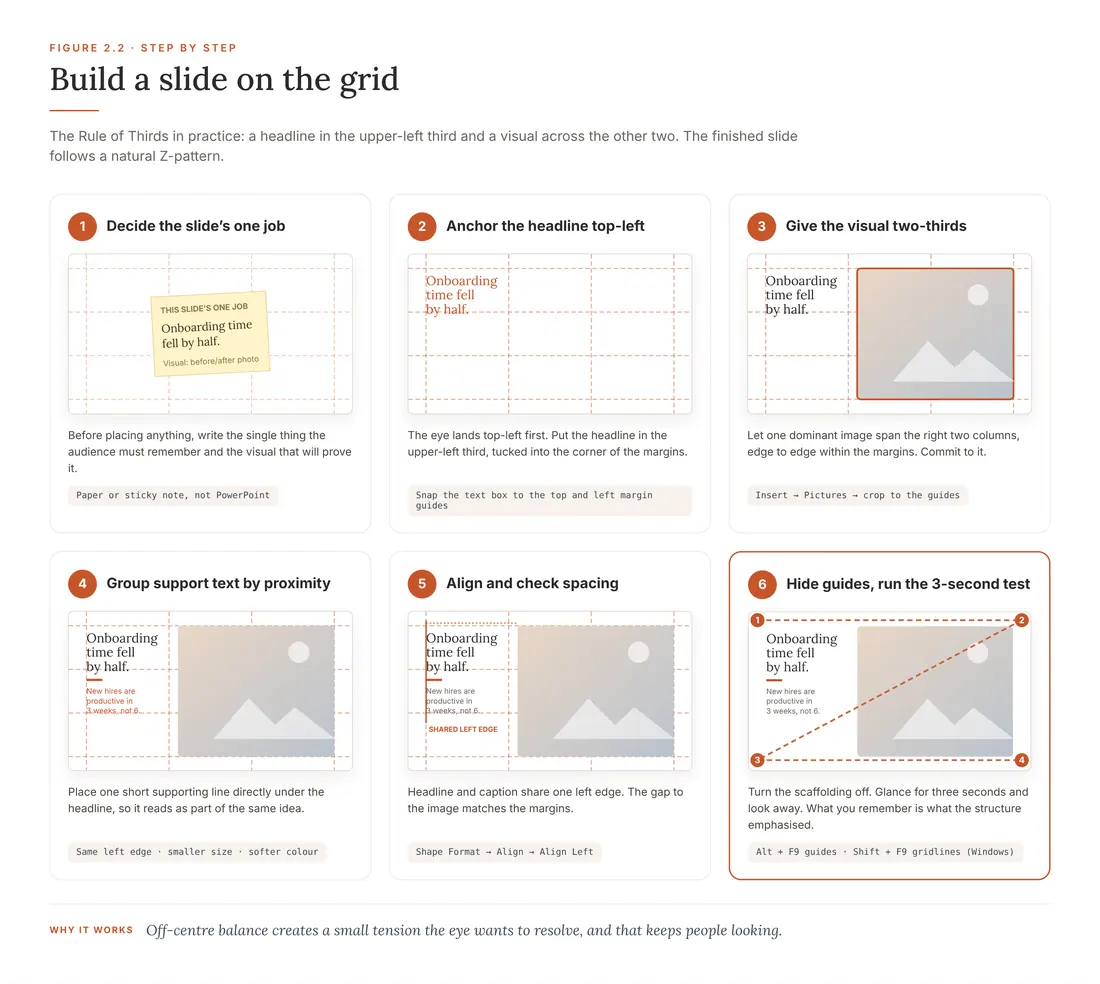
    5. 2.5The Invisible Scaffolding: Grids, Guides and the Rule of Thirds
    6. 2.6How Your Audience Scans — and How to Design for It
    7. 2.7Layout Frameworks Worth Knowing ★
    8. 2.8Every Deck Is a Story — Structure It Like One
    9. 2.9Mistakes That Undermine Layout from the Start
    10. 2.10Practical Exercise
    11. 2.11Summary
  • 03
    Typography That Speaks — Choosing and Using Fonts EffectivelyFont families, pairing, size and distance, hierarchy, spacing and tone.
    See all 11 sections
    1. 3.1The Invisible Layer of Communication
    2. 3.2The Four Font Families and What They Communicate
    3. 3.3Choosing Fonts for Presentations
    4. 3.4Font Size and Readability
    5. 3.5Hierarchy — The Reading Order System
    6. 3.6Spacing, Alignment and the Micro-Decisions That Compound
    7. 3.7Using Fonts for Emotion and Tone
    8. 3.8Common Font Mistakes in PowerPoint
    9. 3.9Advanced PowerPoint Typography Tricks
    10. 3.10Practical Exercise
    11. 3.11Summary
  • 04
    Color Psychology and Palette Creation for Impactful SlidesThe language of colour, palettes, contrast, accent systems and accessibility.
    See all 16 sections
    1. 4.1Why Colour Matters in Presentations
    2. 4.2The Psychology of Colours
    3. 4.3Warm Colours vs. Cool Colours
    4. 4.4The Power of Contrast
    5. 4.5Building a Colour Palette ★
    6. 4.6Contrast — The Non-Negotiable
    7. 4.7Light vs. Dark Backgrounds — Making the Right Call
    8. 4.8Colour Harmony Rules
    9. 4.9Applying Colours in PowerPoint
    10. 4.10The Accent Colour System — Where Colour Does Its Best Work
    11. 4.11Colour as a Hierarchy Tool
    12. 4.12Colour and Brand Identity
    13. 4.13Accessibility — Designing Colour for Every Viewer
    14. 4.14Consistency — The Discipline That Makes Palettes Work
    15. 4.15Practical Exercise
    16. 4.16Summary
  • 05
    Mastering Visual Hierarchy — Guiding Your Audience's EyesSize, contrast, position, white space, Z- and F-patterns, and deck-wide hierarchy.
    See all 13 sections
    1. 5.1What Is Visual Hierarchy?
    2. 5.2Why Hierarchy Matters in Presentations
    3. 5.3Core Principles of Visual Hierarchy
    4. 5.3.1Alignment
    5. 5.3.2Size
    6. 5.3.3Contrast
    7. 5.3.4Position
    8. 5.3.5Proximity
    9. 5.4Eye Movement Patterns — the Z-Pattern and the F-Pattern
    10. 5.5Establishing Hierarchy with Text
    11. 5.6Establishing Hierarchy with Colour
    12. 5.7Establishing Hierarchy with Images and Icons
    13. 5.8Using Shapes and Design Elements
    14. 5.9White Space as a Tool
    15. 5.10Hierarchy Across Multiple Slides
    16. 5.11Mistakes in Visual Hierarchy
    17. 5.12Practical Exercise
    18. 5.13Summary
Level 2

The Content

Chapters 6–10 · How to fill a slide with meaning, not decoration.

  • 06
    Icons, Images, and Illustrations — Visual Storytelling SimplifiedChoosing visuals, combining text and image, editing in PowerPoint and consistency.
    See all 11 sections
    1. 6.1Why Visuals Matter in Presentations
    2. 6.2Icons: Small but Mighty
    3. 6.3Images: Bringing Slides to Life
    4. 6.4Illustrations: Storytelling with Style
    5. 6.5Combining Text and Visuals
    6. 6.6Editing Visuals in PowerPoint
    7. 6.7Creating Consistency with Visuals
    8. 6.8Accessibility with Visuals
    9. 6.9Common Visual Mistakes
    10. 6.10Practical Exercise
    11. 6.11Summary
  • 07
    Data Visualization — Transforming Numbers into NarrativesFinding the insight, choosing the right chart, simplifying data and before-and-after redesigns.
    See all 12 sections
    1. 7.1Why Data Visualisation Matters
    2. 7.2The Story Behind the Numbers
    3. 7.3Choosing the Right Chart Type ★
    4. 7.4Visual Hierarchy in Data
    5. 7.5Simplifying Complex Data
    6. 7.6Designing Charts for Different Presentation Contexts
    7. 7.7Before and After Data Visualisation
    8. 7.8Common Data Visualisation Mistakes
    9. 7.9Visual Storytelling with Data
    10. 7.10The Practical Design Framework
    11. 7.11Practical Exercise
    12. 7.12Summary
  • 08
    Animations and Transitions — Adding Motion with PurposeAnimation types, Morph, the Animation Pane, and when to use motion — and when not to.
    See all 13 sections
    1. 8.1The Purpose of Motion in Presentations
    2. 8.2Understanding Animations vs. Transitions
    3. 8.3Types of Animations in PowerPoint
    4. 8.4Types of Transitions in PowerPoint
    5. 8.5The Power of the Morph Transition
    6. 8.6Best Practices for Animations
    7. 8.7When to Use Animations
    8. 8.8When to Avoid Animations
    9. 8.9The Animation Pane: Your Secret Control Centre
    10. 8.10Practical Animation Techniques
    11. 8.11Common Mistakes with Animations
    12. 8.12Practical Exercise
    13. 8.13Summary
  • 09
    Building Templates — Designing for Consistency and BrandingThe Slide Master, brand systems, reusable slide kits and sharing templates.
    See all 11 sections
    1. 9.1What Are Templates in PowerPoint?
    2. 9.2Why Templates Matter
    3. 9.3Components of a Good Template
    4. 9.4Using the Slide Master
    5. 9.5Branding Through Templates
    6. 9.6Creating Reusable Slide Kits
    7. 9.7Advanced Template Design Tips
    8. 9.8Common Mistakes in Template Design
    9. 9.9Saving and Sharing Templates
    10. 9.10Practical Exercise
    11. 9.11Summary
  • 10
    Storytelling with Slides — Crafting Narratives that InspireThe story arc, storytelling frameworks, emotion and narrative flow.
    See all 11 sections
    1. 10.1Why Storytelling Matters in Presentations
    2. 10.2Elements of a Great Story
    3. 10.3The Classic Story Arc for Presentations
    4. 10.4Storytelling Frameworks for Slides
    5. 10.5Using Slides as Storytelling Tools
    6. 10.6Emotional Storytelling with Slides
    7. 10.7Building Narrative Flow Across Slides
    8. 10.8Storytelling for Different Audiences
    9. 10.9Common Mistakes in Slide Storytelling
    10. 10.10Practical Exercise
    11. 10.11Summary
Level 3

The Edge

Chapters 11–15 · The skills that set professionals apart.

  • 11
    Advanced Features — Morph, 3D, and Multimedia IntegrationMorph storytelling, 3D models, video and audio, and interactive presentations.
    See all 10 sections
    1. 11.1Why Advanced Features Matter
    2. 11.2Advanced Morph Storytelling
    3. 11.33D Models in PowerPoint
    4. 11.4Multimedia Integration — Video, Audio and GIFs
    5. 11.5Interactive Presentations
    6. 11.6Live Demonstrations and Embedded Content
    7. 11.7Best Practices for Advanced Features
    8. 11.8Common Mistakes with Advanced Features
    9. 11.9Practical Exercise
    10. 11.10Summary
  • 12
    Common Mistakes and How to Fix ThemThe top ten mistakes, design and delivery errors, and before-and-after fixes.
    See all 8 sections
    1. 12.1Why Mistakes Matter
    2. 12.2The Top 10 Common Presentation Mistakes
    3. Too Much Text · Overloaded Slides · Poor Contrast · Inconsistent Design · Overusing Animations · Bad Image Quality · Ignoring Audience Needs · No Story Flow · Reading Slides Word-for-Word · Weak Endings
    4. 12.3Design-Specific Mistakes
    5. 12.4Delivery Mistakes
    6. 12.5How to Spot and Fix Mistakes Quickly
    7. 12.6Practical Before-and-After Fix Examples ★
    8. 12.7Practical Exercise
    9. 12.8Summary
  • 13
    Earning with Presentations — Monetizing Your Design SkillsServices to sell, portfolios, first clients, pricing and passive income — with PowerPoint, Canva and AI.
    See all 15 sections
    1. 13.1Why Presentation Design Is a High-Income Skill
    2. 13.2Why PowerPoint Is Still King
    3. 13.3Where Canva Fits into the Workflow
    4. 13.4AI Tools That Are Changing the Game
    5. 13.5Using AI for Slide Research and Content
    6. 13.6AI Design Tools for Visual Inspiration
    7. 13.7Services You Can Sell
    8. 13.8Building Your Portfolio
    9. 13.9Finding Your First Clients
    10. 13.10Pricing Your Services
    11. 13.11Creating Passive Income
    12. 13.12Building a Personal Brand
    13. 13.13The Future of Presentation Design
    14. 13.14Practical Exercise
    15. 13.15Summary
  • 14
    Claude for PowerPoint — Designing with an AI PartnerSetup, briefing, templates, editable visuals, honest data, automation and a complete AI workflow.
    See all 20 sections
    1. 14.1What "Claude for PowerPoint" Actually Means
    2. 14.2Setting Up Claude for PowerPoint
    3. 14.3What It Can Actually Do — Four Levels of Use
    4. 14.4The Prompt Is the Brief
    5. 14.5Working Inside Your Template
    6. 14.6Stop Asking for Slides — Start Asking for Decisions
    7. 14.7Turning Text into Visuals
    8. 14.8Keeping Your Data Honest
    9. 14.9Targeted Editing — The Designer's Edit Loop
    10. 14.10Persistent Instructions — Your Design Standards, On by Default
    11. 14.11Beyond the Add-in — Automating PowerPoint with Code
    12. 14.12Where Claude Stops and You Take Over
    13. 14.13The Complete Workflow — From Brief to Final Deck
    14. 14.14Claude for PowerPoint vs. Copilot vs. ChatGPT
    15. 14.15Using AI Responsibly — Privacy, Security and Professional Judgment
    16. 14.16The Prompt Library ★
    17. 14.17The AI Deck Review Checklist ★
    18. 14.18Your 30-Day Roadmap ★
    19. 14.19Practical Exercise — The Ninety-Minute AI Redesign
    20. 14.20Summary
  • 15
    Microsoft 365 Copilot for PowerPoint NEW — From AI-Generated Slides to Interactive ExperiencesInteractive slides, Brand Kits, Skills, Agents, App Builder and a six-stage production line, with what each tool is for and where it breaks.
    See all 22 sections
    1. 15.1The Copilot Landscape — Six Tools, Not One
    2. 15.2Access, Licensing and Setup — Why Your Screen May Look Different
    3. 15.3Creating Your First Copilot Presentation — The Outline Is the Product
    4. 15.4Building from Your Own Material — Files, References and Work IQ
    5. 15.5Editing with Copilot — Working Across the Whole Deck
    6. 15.6Choosing Your Model — ChatGPT, Claude, or Auto
    7. 15.7Images: Generation and Designer Editor
    8. 15.8Explain, Summarize and Review — Copilot for the Audience
    9. 15.9Interactive Slides — The Slide Becomes an Experience
    10. 15.10Building Interactive Slides That Look Designed
    11. 15.11Brand Kit and Template Controls — Consistency at Scale
    12. 15.12Copilot Skills — Your Process, Saved
    13. 15.13Edit with Copilot as a Production Line — The Six-Stage Workflow
    14. 15.14Copilot Agents — Reusable AI Assistants
    15. 15.15App Builder — From Spreadsheet to Application
    16. 15.16Copilot Plus Traditional PowerPoint — The Hybrid Designer
    17. 15.17The Copilot Prompt System — Ten Elements of Control
    18. 15.18Limitations, Accuracy and Responsible Use
    19. 15.19Ten Projects to Build
    20. 15.20Signature Project — The Ultimate AI-Powered Presentation
    21. 15.21Your 30-Day Copilot Roadmap
    22. 15.22Summary
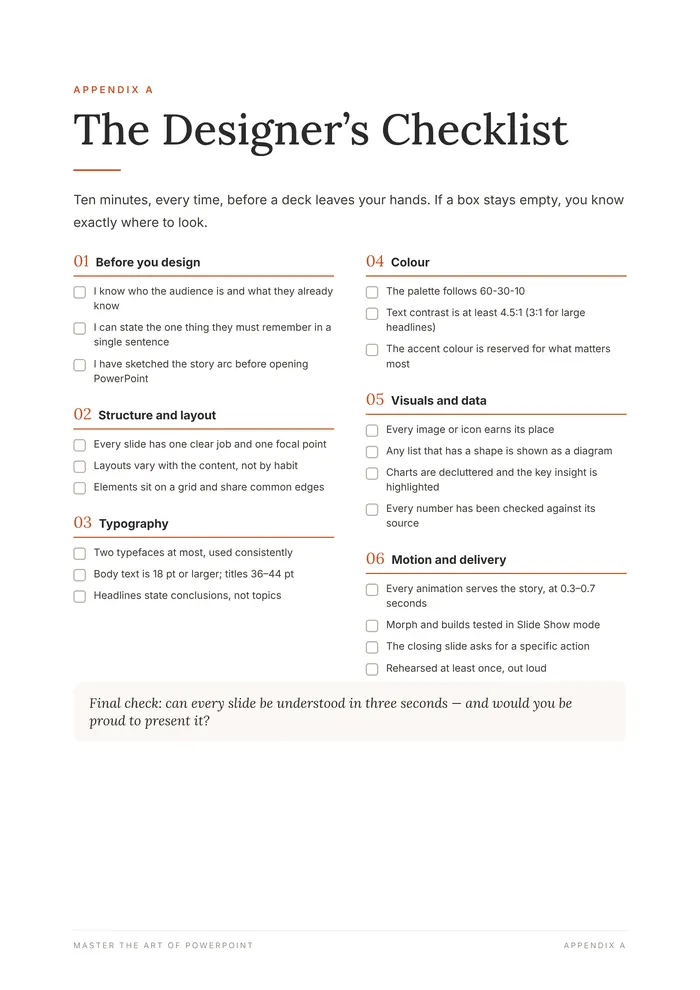
Appendix A ★The Designer's Checklist
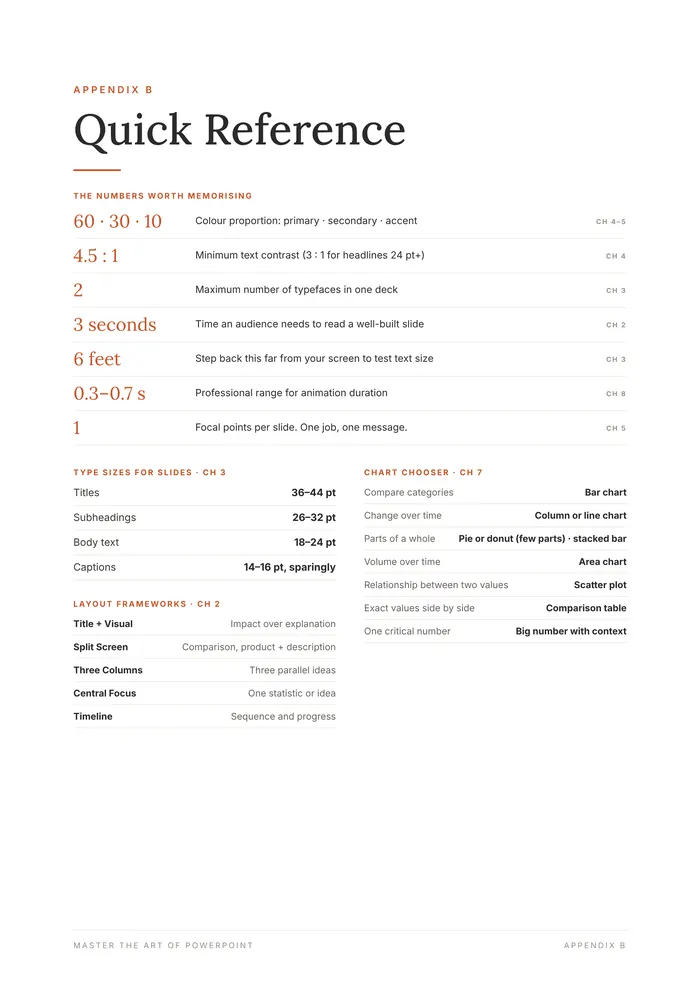
Appendix B ★Quick Reference
Appendix C ★Keyboard Shortcuts
Appendix DWorksheets — The Presentation Brief & The Storyboard

Also in the back matter: Afterword · Resources · Glossary · Index · About The AMS · Keep Learning. ★ marks a reference page you'll come back to.

Look inside

Designed like the slides it teaches.

Real pages from the book — tap any page to read it up close.

Swipe to see more · tap a page to enlarge

New in the Complete Edition

Design with an AI partner — without losing your eye.

Chapter 14 is a complete, practical guide to Claude for PowerPoint. Chapter 15 covers Microsoft 365 Copilot: interactive slides, Brand Kits, Skills, Agents and a six-stage production line.

  • The four ways Claude and PowerPoint connect — and which to use when
  • Prompts that work like a design brief, not a wish
  • Editable visuals, honest data and automation for the boring parts
  • A ten-minute AI deck review checklist and a 30-day roadmap
  • Copilot interactive slides, Brand Kits, Skills and Agents — new in Chapter 15
Who it's for

Built for wherever you're starting.

It assumes nothing — and still takes confident designers further. Every chapter stands on its own.

Complete beginners

Start with the interface and build up, one principle at a time.

Start: Chapters 1–5

Students

Projects and presentations that stand out from the class.

Start: Ch 2, 3, 5

Teachers & trainers

Lessons that hold attention and actually stick.

Start: Ch 5, 6, 8

Professionals

Pitches, reports and proposals that get approved.

Start: Ch 7, 9, 10

Creators & freelancers

Turn presentation design into income.

Start: Ch 9, 11, 13
Dr. Abdullah Shaikh, author of Master the Art of PowerPoint
302,000,000+views on his
tutorials
Meet your teacher

Dr. Abdullah Shaikh

Doctor · Presentation designer · Educator

My journey with PowerPoint began in medical college — lectures, case discussions, one presentation after another. I started with default templates and walls of bullet points, like everyone else. So I started experimenting, slide by slide.

“What does this slide need to help someone understand?”

That question became the foundation of how I design — and of this book. It brings the whole approach together in one complete course. Nothing held back.

The resource packs

The template
store.

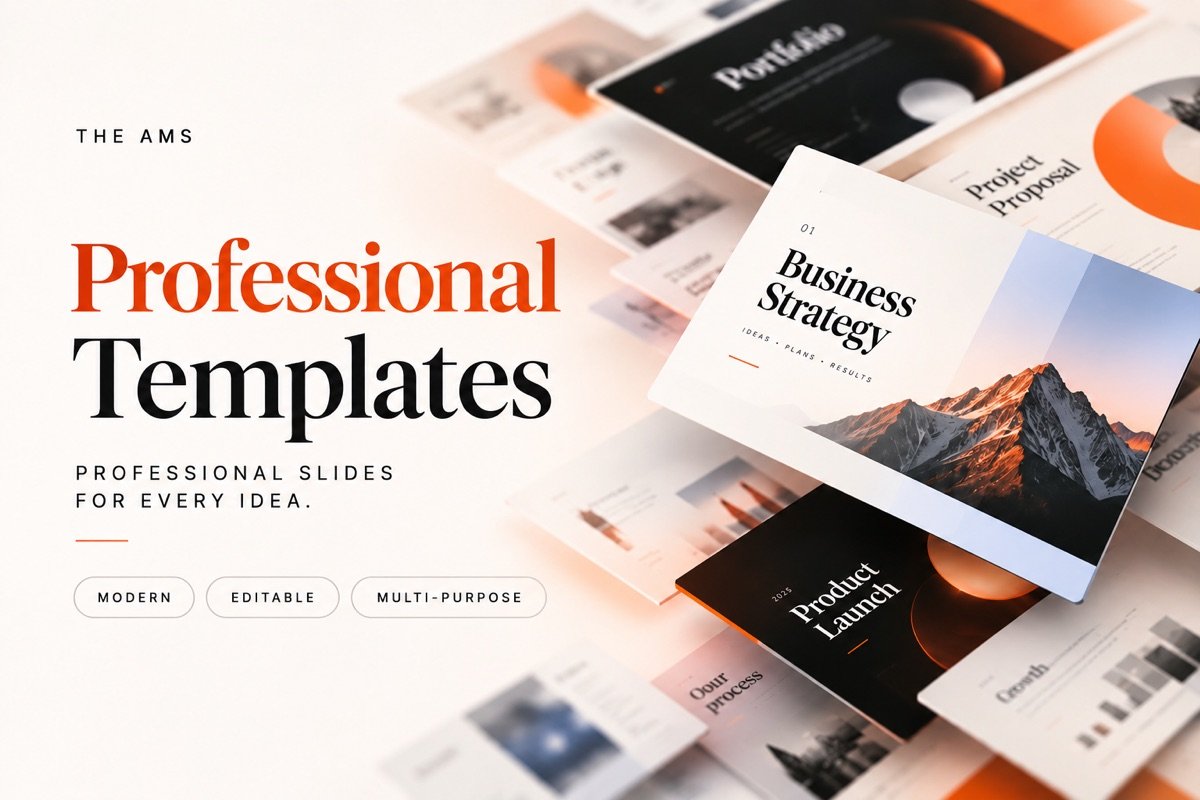
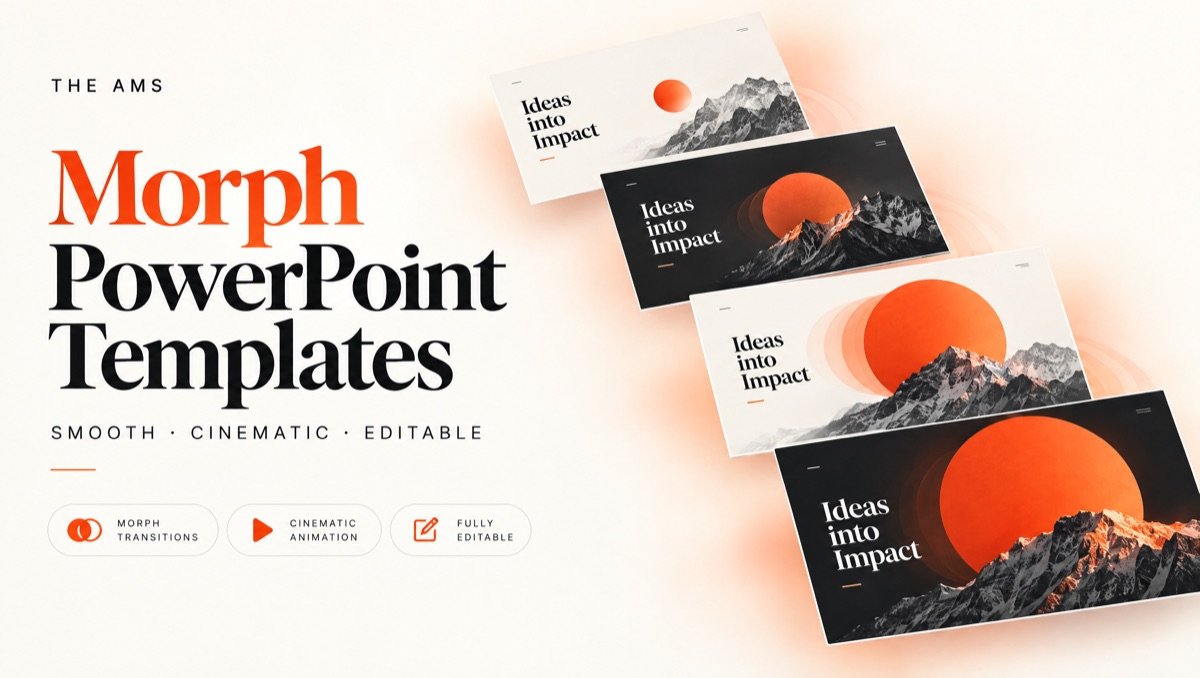
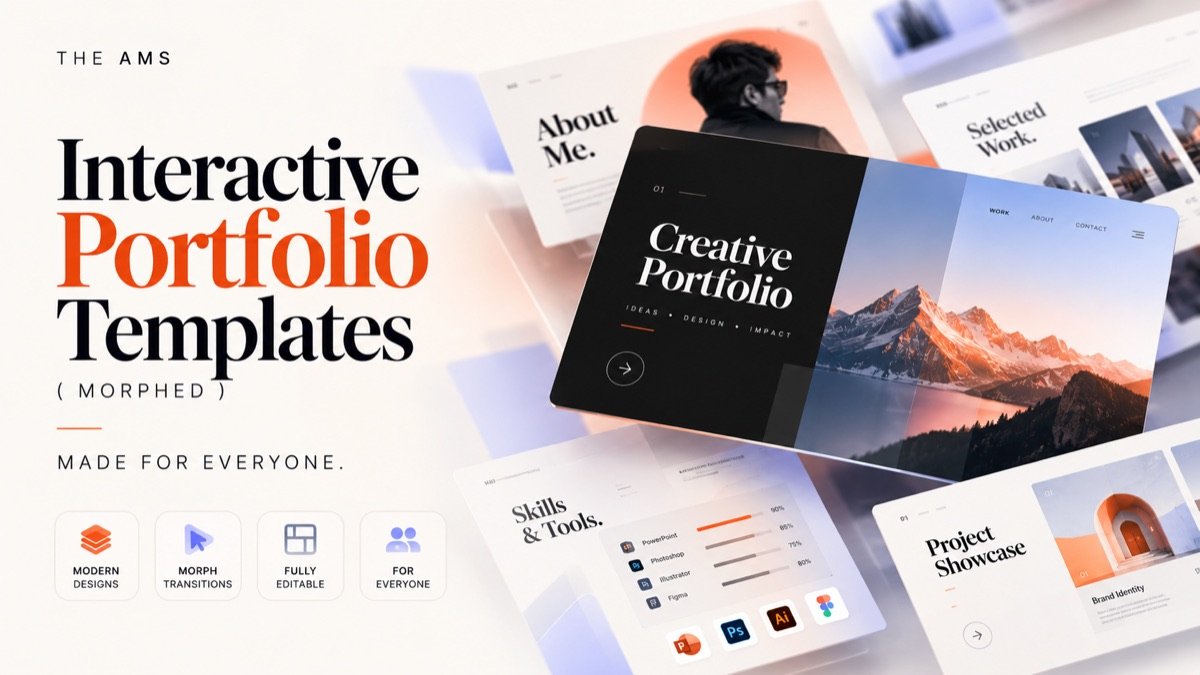
Morph decks, portfolios, simple templates and infographics. Every template is sold on its own in the template store, or get the whole library with the Complete Bundle.

Get the book

Your two purchase options

One-time payment. Instant download. Yours to keep.

Launch offerLaunch prices: the book for and the Complete Bundle for .When the timer ends, pricesAfter launch week, prices go up to and .

Selected: Option B — Complete Bundle ·

Continue to checkout

What's included?

ProductOption AOption B
Master the Art of PowerPoint
Ultimate Template Pack—
Morph PowerPoint Template Pack—
Interactive Portfolio Template Pack—
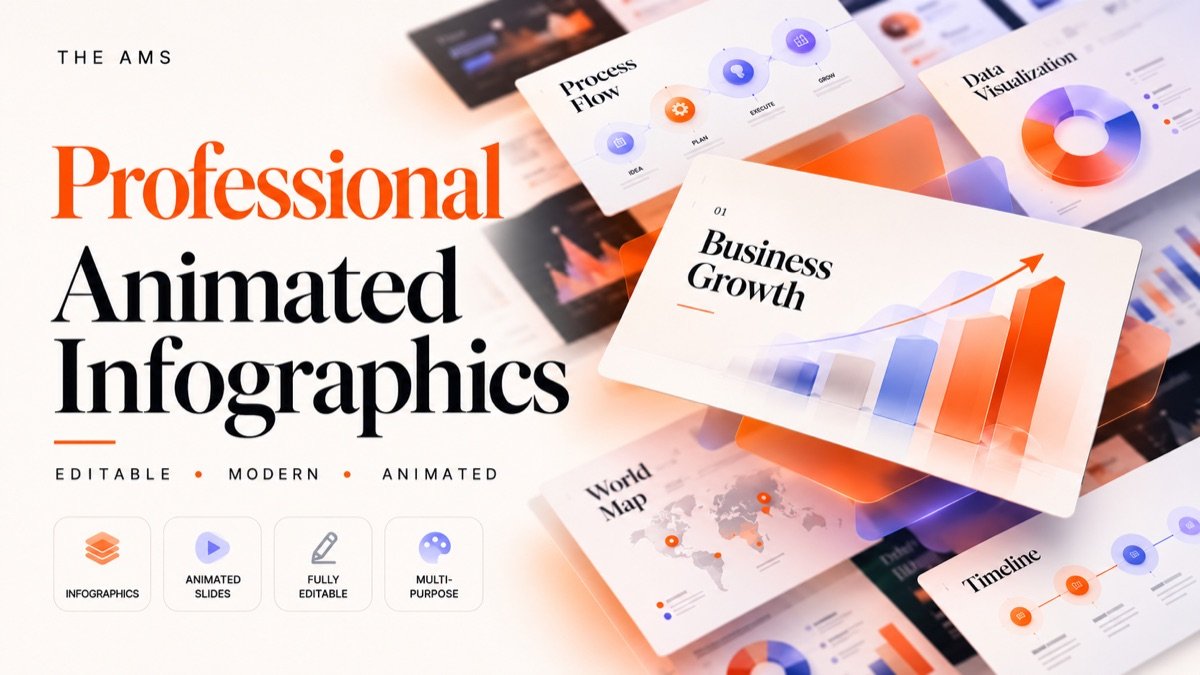
Infographics Pack—
Claude Prompt Pack—
You pay
Secure checkout by Gumroad Instant download link by email Taxes calculated at checkout
VisaMastercardAmexPayPalApple PayGoogle Pay
From the comments

The Reason This Book Exists

Drag to explore

Questions

Frequently asked

Is it worth it?

If you make even a few presentations a year, yes. The book replaces hours of trial and error with a system — every principle comes with the reason it works and a way to use it immediately.

What format is the book? How do I get it?

A high-quality PDF — it's a digital book, not a printed one. Right after payment you'll see a download button, and the link is also emailed to you — read on laptop, tablet or phone.

I'm a complete beginner. Is this for me?

Yes. Level 1 starts with the PowerPoint interface and builds up step by step. If you're already confident, Levels 2 and 3 take you further.

Does it work with Mac and older versions of PowerPoint?

Yes. The design principles work in any version, and shortcuts are given for Windows and Mac. A few newer features (like Morph and some AI tools) need a recent Microsoft 365.

Do I need Claude or a paid AI subscription?

No. Chapters 1–13 need only PowerPoint. Chapter 14 shows how to use Claude for PowerPoint, and Chapter 15 covers Microsoft 365 Copilot (which needs a Copilot licence), if you choose to use them.

What's the difference between Option A and Option B?

Option A is the book on its own — the complete course. Option B, the Complete Bundle, adds five resource packs: the Ultimate Template Pack, Morph PowerPoint Template Pack, Interactive Portfolio Template Pack, Infographics Pack and Claude Prompt Pack. The bundle is , a one-time payment.

Which payment methods can I use? Is tax included?

All major cards, PayPal, Apple Pay and Google Pay. Gumroad handles checkout and adds any local tax for your country automatically.

Your next deck can be the one people remember.

From a blank slide to "Wow — you made this in PowerPoint?"

Get instant access
Instant PDFOne-time paymentSecure checkout
Master the Art of PowerPointfrom $50 · instant PDF
Get the book